A YouTube to MP3 Converter may seem like a quick way to save a song, podcast, lecture, or interview. The real issue is not the MP3 format itself. It is whether you have permission to copy the source and whether the method protects your device. The safest approach is to use YouTube’s official features or convert a video file that you legally own, created, or received with clear download rights.
This guide focuses on practical, malware-aware choices rather than promoting unknown converter websites. You will learn when audio extraction may be permitted, how YouTube Premium and the Audio Library work, and how to use VLC Media Player or Audacity offline. You will also get a simple checklist for spotting dangerous downloads, misleading buttons, unwanted software, and executable files disguised as music.
Is a YouTube to MP3 Converter Legal?
Using a YouTube to MP3 Converter is not automatically legal simply because a video is publicly viewable. YouTube’s Terms restrict downloading or modifying content unless the service expressly permits it, YouTube and the relevant rights holder grant permission, or applicable law allows the use. Copyright rules can also vary by country, so personal use does not always create an automatic right to copy a song or video.
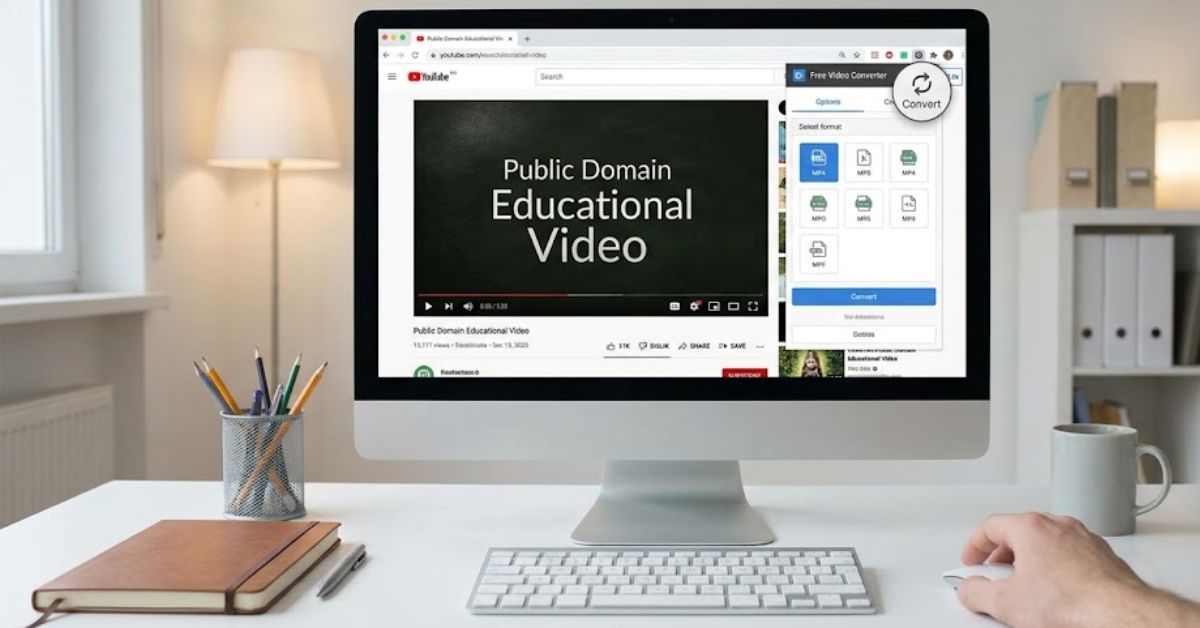
A safer decision begins with the source. Conversion is usually easier to justify when the video is your own work, is in the public domain, carries a license that permits downloading and adaptation, or comes with direct permission from the copyright owner. Avoid assuming that “royalty-free,” “no copyright,” or “free online” means unrestricted. Read the actual license and keep proof of permission when the audio supports a commercial project.
Use this quick rights checklist:
- Did you create or legally obtain the source file?
- Does its license allow downloading and audio extraction?
- Is attribution required?
- Are commercial uses permitted?
- Can you document the creator’s permission?
- Does YouTube provide an official download option?
Use Official YouTube Options First
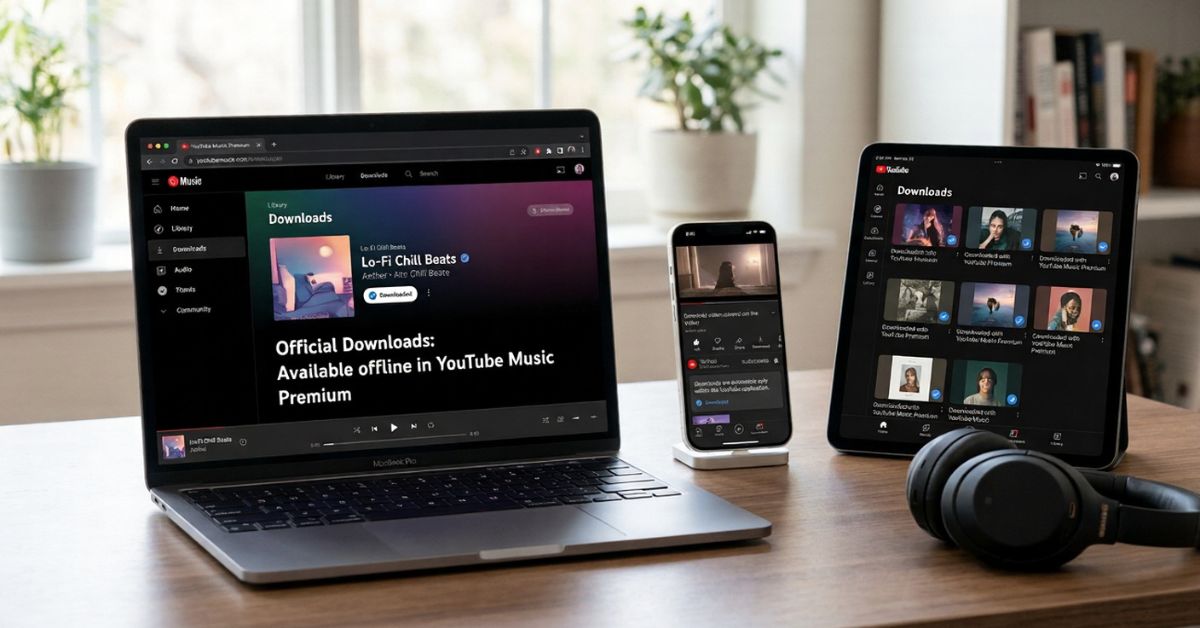
YouTube Premium is the simplest official option when your goal is offline listening rather than obtaining a separate MP3 file. Premium supports offline downloads through the YouTube and YouTube Music apps, along with background playback on supported devices and plans. The saved content remains inside the official app environment, so it is not an exported audio file that you can freely move into editing software or another media player.
For music used in video projects, the YouTube Audio Library is often a better solution than a YouTube audio downloader. It provides production music and sound effects inside YouTube Studio, and tracks can be downloaded as MP3 files. Some Creative Commons tracks require attribution, while other Audio Library tracks do not. Always check the license details shown for the exact track before publishing or monetizing your project.
Official choices include:
- YouTube Premium for offline in-app listening
- YouTube Music Premium for music downloads inside the app
- YouTube Audio Library for downloadable production tracks
- Creator Music, where available, for licensed creator use
- Direct downloads supplied by the copyright owner
Compare Safe Audio Extraction Methods
When you already possess a legal local video file, offline conversion reduces exposure to aggressive ads, fake buttons, redirects, and unnecessary account requests. VLC is ideal for a fast audio-only conversion, while Audacity is useful when you also need trimming, cleanup, volume adjustment, or other editing. Both tools process the file on your computer instead of uploading private or unpublished footage to a third-party website.
The best method depends on the result you need. A YouTube to MP3 Converter website is unnecessary when the source file is already on your device. You can use VLC for a straightforward export, Audacity for detailed editing, or FFmpeg for advanced command-line control. Install software only from its official project source or a trusted operating-system repository, and keep the application updated.
| Method | Best for | Separate MP3 file? | Main limitation |
|---|---|---|---|
| YouTube Premium | Offline listening | No | Playback remains in the app |
| YouTube Audio Library | Licensed creator music | Yes | Terms vary by track |
| VLC Media Player | Quick local conversion | Yes | Limited audio editing |
| Audacity | Editing and export | Yes | Some formats need FFmpeg |
| FFmpeg | Advanced or batch conversion | Yes | Command-line learning curve |
Extract Audio From a Legal File With VLC or Audacity
VLC Media Player can transcode a local media file and save the result on your computer. In the desktop app, open Media, choose Convert/Save, add the legal source video, and continue to the conversion window. Select an audio-only MP3 profile, choose a destination filename ending in .mp3, and start the process. Play the finished file before deleting the original, because incompatible codecs or settings can occasionally affect the output.
Audacity offers more control when the extracted track needs editing. Many video containers require the optional FFmpeg component before Audacity can import their audio. After installing it through Audacity’s official guidance, import the local video or audio file, make any necessary edits, and use File > Export Audio to select MP3. Choose a sensible bitrate, enter metadata if needed, and save the export to a clearly named folder.
VLC conversion steps:
- Open Media > Convert/Save.
- Add the video file you are authorized to use.
- Select Convert.
- Choose an audio-only MP3 profile.
- Enter a destination filename ending in
.mp3. - Start the conversion.
- Test the finished audio file.
Audacity extraction steps:
- Install Audacity from its official source.
- Add its optional FFmpeg component when required.
- Import the authorized source file.
- Trim, clean, or adjust the audio.
- Select File > Export Audio.
- Choose MP3, bitrate, metadata, and destination.
- Save and listen to the exported file.
Avoid Malware, Pop-Ups, and fake downloads.
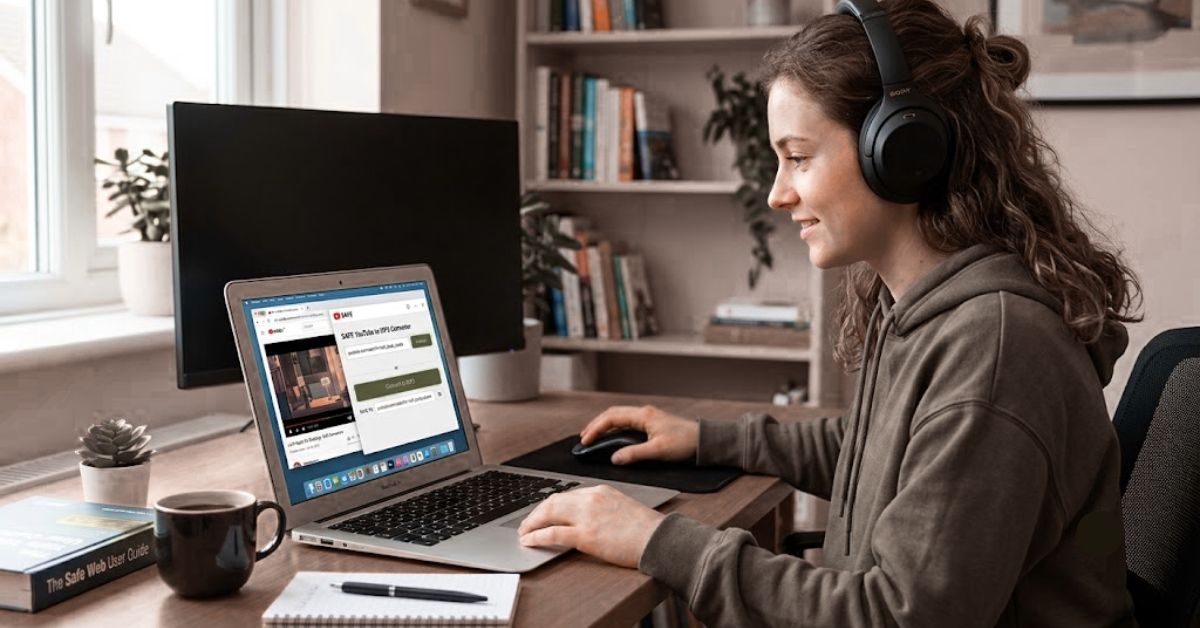
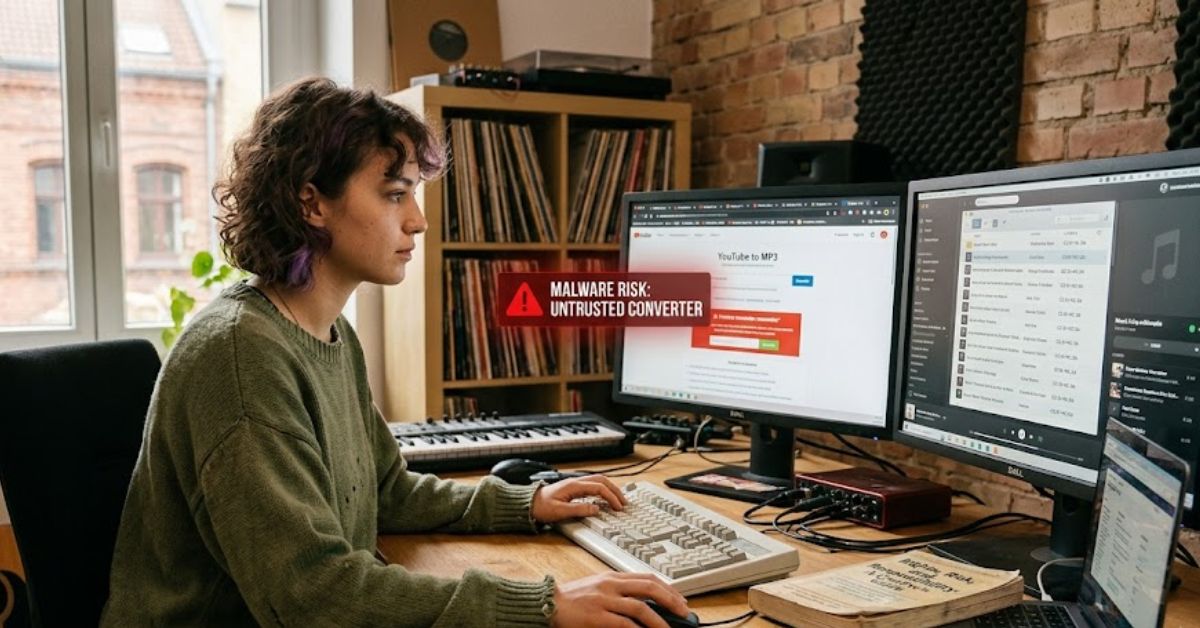
Free web converters can expose users to intrusive advertising, deceptive redirects, phishing prompts, suspicious browser extensions, and unwanted downloads. An ad blocker may reduce pop-ups, but it cannot prove that a converter is trustworthy. Browser Safe Browsing warnings should never be ignored. Do not disable security features, allow notification spam, install a “required codec,” or enter a password, payment card, or social account merely to receive an MP3.
Before opening any downloaded file, display its full filename and extension. A real MP3 normally ends in .mp3, while files ending in .exe, .msi, .bat, .cmd, .scr, or similar executable formats can run software or scripts. Watch for double extensions such as interview.mp3.exe. Scan unfamiliar files with your device’s security tools, and delete anything that behaves differently from an ordinary audio file.
| Check | Safer sign | Warning sign |
| Filename | lesson.mp3 |
lesson.mp3.exe |
| Download action | One clear file download | Multiple tabs or redirects |
| Account request | No registration needed | Login, card, or identity request |
| Browser response | No security alert | Dangerous-download warning |
| Extra software | Nothing bundled | Codec, extension, or installer required |
Download safety checklist:
- Keep browser and operating-system protection enabled.
- Reject notification permissions from unfamiliar sites.
- Never run an installer to play an MP3.
- Confirm that the file size is reasonable for its duration.
- Keep full file extensions visible.
- Scan unfamiliar files before opening them.
- Remove suspicious browser extensions immediately.
- Never provide payment details for a supposedly free conversion.
Choose the Right MP3 Quality and File Format
MP3 is widely compatible, but it uses lossy compression, meaning some audio information is discarded to reduce file size. For spoken-word recordings, a moderate bitrate can sound clear while keeping files small. Music generally benefits from a higher bitrate. Avoid repeatedly converting the same track from one lossy format to another, because each additional MP3 conversion can lower quality without restoring detail missing from the original source.
Use WAV or FLAC when you control the source and need a high-quality master for editing or archiving. Export an MP3 copy afterward for convenient sharing or playback. A practical workflow is to keep one lossless master, then create smaller delivery files for specific uses. Whatever format you select, name the file clearly, preserve licensing information, and store permission or attribution notes with the rest of the project.
| Use case | Suggested format | Practical setting |
| Voice notes or lectures | MP3 | 96–128 kbps |
| Podcasts with music | MP3 | 128–192 kbps |
| General music listening | MP3 | 192–256 kbps |
| High-quality portable music | MP3 | 320 kbps |
| Editing master | WAV | 16-bit or 24-bit |
| Compressed archive | FLAC | Lossless |
Higher bitrates normally create larger files, so selecting the maximum setting is not always necessary. Audacity recommends different settings depending on whether the recording contains speech, stereo music, or both. Its standard variable-bitrate preset generally suits music, while constant bitrate may be more predictable for podcasts and other spoken content. Keep the original file until you have checked the converted audio from beginning to end.
Conclusion
The safest route is to avoid random web downloaders and start with permission. Use YouTube Premium for offline playback, the YouTube Audio Library for licensed creator tracks, or offline software when you already own the video file or have authorization to convert it. VLC handles quick extraction, while Audacity works better when the audio needs editing. These choices reduce security exposure and make license compliance easier to document.
A responsible YouTube to MP3 Converter workflow protects three things at once: the creator’s rights, your device, and the quality of your audio. Check the license, use official sources, keep full file extensions visible, and reject downloads that request installers or sensitive information. When the legal status is unclear, stream the content through YouTube or ask the rights holder for permission instead of creating a separate copy.