Searching for a YT to MP4 solution usually means you want a YouTube video saved in the widely supported MP4 format. The safest workflow depends on where the source file comes from. VLC Media Player and HandBrake are excellent for converting a video file already stored on your computer. Browser tools can sometimes process a YouTube link directly, but they require more caution because privacy, advertising, and reliability vary by site.
Before choosing a method, decide whether you need an actual MP4 file or only offline viewing. YouTube offers built-in offline downloads through eligible Premium plans, but those downloads remain available through YouTube rather than becoming ordinary, reusable MP4 files. For a file you own, created, licensed, or received with permission, desktop conversion gives you more control over quality, storage, security, and future reuse.
| Method | Best for | Installation | Main concern |
|---|---|---|---|
| VLC Media Player | Simple local-file conversion | Required | Fewer quality controls |
| HandBrake | Quality and file-size control | Required | More settings to learn |
| Online converter | Quick browser processing | Not required | Privacy, ads, and availability |
| YouTube offline download | Watching inside YouTube | App or account required | No standard MP4 file |
Before You Convert: Permission, Safety, and Source Files
Only download or convert videos when you own the content, have the creator’s permission, or the video is clearly licensed for reuse. YouTube’s Terms restrict downloading, reproducing, or modifying content unless the service expressly authorizes it or the relevant rights holders provide permission. A converter’s technical ability does not automatically make every download permitted. When uncertain, use YouTube’s official offline option or request the original file from the creator.
A safe YT to MP4 process begins with a trustworthy source file. When you already have your own exported video, a client-provided recording, or another lawfully obtained file, scan it with your security software and preserve the original. Download VLC only from VideoLAN and HandBrake only from its official website. The FTC also advises consumers to avoid unfamiliar websites offering free movies, music, shows, games, or software.
Use this checklist before converting:
- Confirm that you own the video or have permission.
- Keep the original video as a backup.
- Download software from its official publisher.
- Avoid sites that demand browser extensions.
- Do not grant unnecessary notification permissions.
- Never enter a Google password into a converter.
- Scan the completed MP4 before opening or sharing it.
Method 1: Convert a Local Video With VLC

VLC Media Player is a free, open-source media player that can also convert local media files. It is a practical choice when you need a straightforward MP4 without managing numerous technical settings. Official VLC documentation places the conversion command under Media and Convert/Save. The important limitation is that this workflow starts with a file already on your computer; VLC should not be presented as a guaranteed direct YouTube downloader.
Follow these steps to convert a permitted local video:
- Open VLC and select Media > Convert/Save.
- Click Add and choose your source video.
- Select Convert/Save again.
- Choose an MP4-compatible profile, such as H.264 video with AAC or MP3 audio.
- Select a destination folder.
- Enter a filename ending in
.mp4. - Click Start and let the conversion finish.
After conversion, open the new file and check its picture, sound, duration, and synchronization. Available profiles may differ slightly by VLC version and operating system, so select an H.264-based profile when broad compatibility matters. If the output has no sound, try a profile that includes AAC audio. If the file does not open, confirm that its name ends in .mp4 and that VLC completed the conversion before closing.
Method 2: Convert a Local Video With HandBrake
HandBrake is a free, open-source transcoder created for turning existing videos into formats that work across computers, phones, televisions, and browsers. It supports common source files and offers official presets that generally use the MP4 container. Compared with VLC, HandBrake gives you clearer control over resolution, frame rate, video codec, subtitles, and compression, making it a stronger option when output quality and file size are important.
Use this workflow for a local video you are allowed to convert:
- Open HandBrake and drag the video into its window.
- Choose a preset such as Fast 1080p30 or Fast 720p30.
- Open the Summary tab.
- Set Format to MP4.
- Leave the video encoder on H.264 for broad compatibility.
- Choose a destination and filename.
- Click Start Encode.
- Review the completed MP4.
For most users, an official preset is safer than changing every technical option manually. H.264 offers strong compatibility, while constant-quality encoding allows HandBrake to adjust the bitrate according to each scene’s complexity. Lower quality settings produce smaller files but may soften details. A 720p preset is often sufficient for messaging and mobile viewing, while 1080p works better for presentations, televisions, and videos containing small on-screen text.
Method 3: Use an Online Converter Carefully
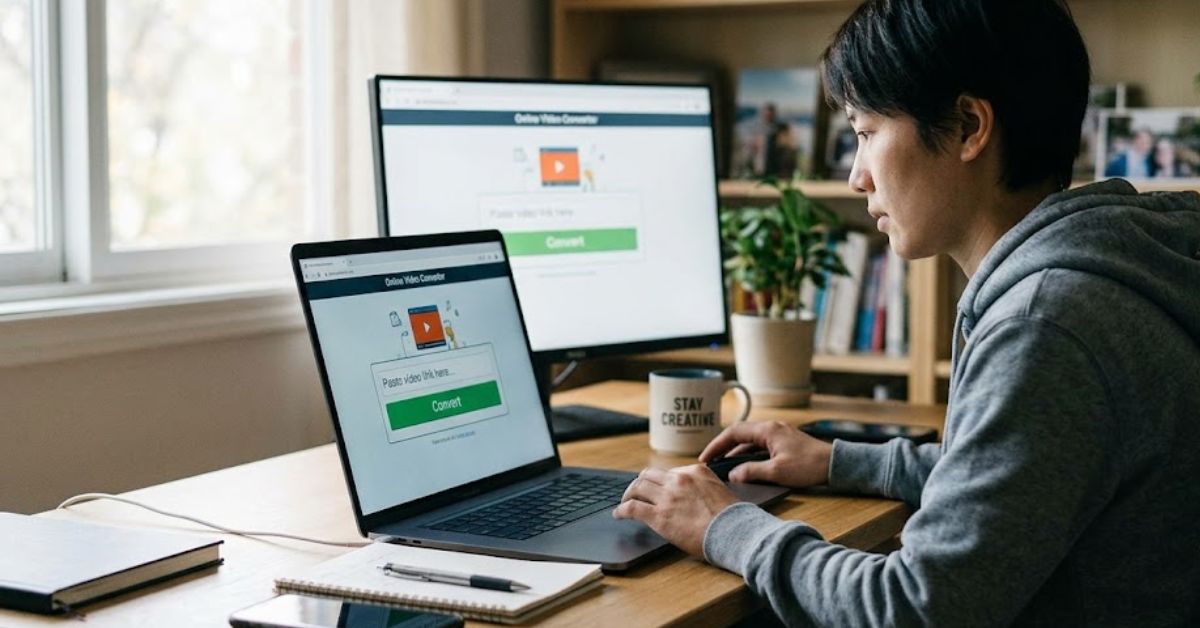
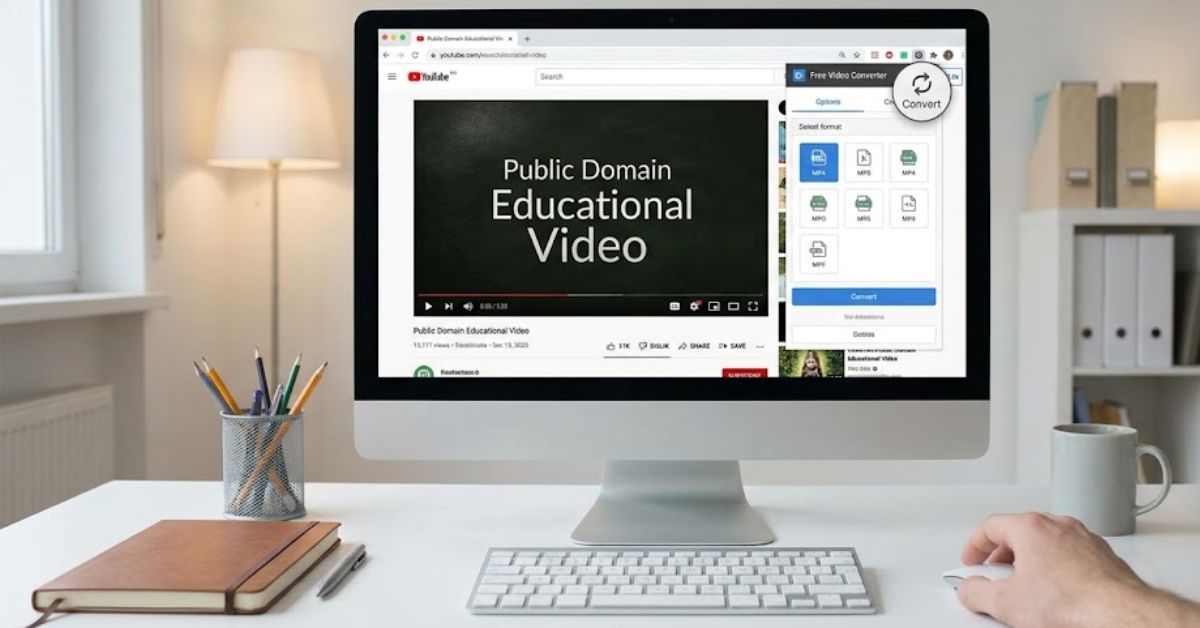
An online YouTube to MP4 converter may feel convenient because it works inside a browser and requires no installation. The usual process involves pasting a permitted video link, selecting MP4 and a resolution, and downloading the finished file. As of July 2026, TurboScribe advertises a browser-based YouTube MP4 tool that does not require an account. However, third-party features, restrictions, and availability can change without warning.
The main concern with browser converters is not the MP4 format. It is the website surrounding the conversion. Aggressive pop-ups, fake download buttons, redirects, notification requests, and bundled extensions can expose visitors to scams or malicious software. The FTC recommends avoiding software download advertisements and unfamiliar free-download websites. Close any converter that requests account credentials, unexpected payment information, remote access, or installation of an unknown extension.
Red flags include:
- Several flashing buttons labeled Download
- Automatic redirects to unrelated websites
- Requests to enable browser notifications
- A supposedly required browser extension
- Requests for passwords or payment details
- Fake virus or security warnings
- Downloads ending in
.exe,.msi, or.apk - A filename unrelated to the requested video
A normal video download should generally end in .mp4. Do not open an executable file when you expected a video.
YT to MP4 Quality, File Size, and Troubleshooting
Resolution describes the number of pixels in a picture, but a larger resolution does not automatically create better quality. Converting a 720p source to 1080p cannot restore missing detail and usually creates a larger file. Codec and bitrate also matter. H.264 remains a practical default because many devices support it, while MP4 is the container holding the encoded video, audio, subtitles, and related media information.
| Setting | Best use | Expected size | Compatibility |
| 480p H.264 | Small screens and quick sharing | Small | Excellent |
| 720p H.264 | Mobile and general web viewing | Medium | Excellent |
| 1080p H.264 | Laptops, TVs, and presentations | Large | Excellent |
| 1080p H.265 | Reducing size on newer devices | Medium | Varies |
Match the output resolution to the source whenever possible. Choose 720p when you need a smaller file and the video will mainly be viewed on a phone. Select 1080p for larger displays, educational presentations, demonstrations, or screen recordings containing fine text. Avoid increasing the frame rate beyond the original video because this adds processing time without creating genuine new motion detail.
If a YT to MP4 file has problems, test the original source first. Missing sound often points to an unsupported audio setting, while choppy playback may indicate a demanding codec or incomplete download. Try H.264 video with AAC audio, maintain the source resolution, and avoid raising its frame rate. When a browser download appears suspicious, delete it without opening it, update your security software, and run a complete security scan.
Conclusion
The safest YT to MP4 method begins with a video you are legally permitted to use and a local file converted through trusted software. VLC works well for straightforward conversions, while HandBrake is better for controlling resolution, compression, codec settings, and output size. Online converters may offer convenience, but they require careful attention to permissions, privacy practices, pop-ups, redirects, browser extensions, and unexpected download formats.
For offline viewing alone, YouTube’s official download feature is generally the cleanest choice, although it does not provide a normal MP4 file. For an actual MP4, preserve the original video, choose an H.264 preset, verify the completed file, and scan unfamiliar downloads before opening them. A careful conversion workflow protects your device, maintains video quality, and reduces potential copyright and security problems.